

Introduction
Slow Wi-Fi disrupts video calls mid-sentence, buffers streams at the worst moments, and knocks smart devices offline without warning. For North Bay Area homes and small businesses, that translates to lost productivity and real frustration. Research shows that for users with internet plans exceeding 800 Mbps, the home wireless network is the performance bottleneck 100% of the time, and 86% of US adults have experienced Wi-Fi signal drops or disconnections.
Most slow Wi-Fi problems stem from a handful of fixable causes. This guide walks through 10 expert-backed tips to diagnose and resolve them—from simple restarts to settings optimization—and clarifies when it's time to replace your hardware or call a professional.
TL;DR
- Most slow Wi-Fi stems from poor router placement, device overload, outdated hardware, or interference
- A quick restart, reposition, or settings tweak often resolves the issue in minutes
- The 10 tips below cover quick fixes, security checks, and smart hardware upgrades
- If problems persist after trying these steps, it's time for a router upgrade or a professional network assessment
Why Is Your Wi-Fi Slow? (Common Causes)
Most slow Wi-Fi problems trace back to four culprits: physical obstructions (walls, floors, appliances), network congestion from too many devices, outdated hardware that can't support 802.11ac or newer standards, and ISP-side issues like throttling or plan limitations.
Material obstructions severely degrade signals:
| Material | Signal Loss | Impact on Wi-Fi |
|---|---|---|
| Concrete (8-inch) | 48-55 dB at 5 GHz | Severe degradation; often blocks signals entirely |
| Brick | 10-15 dB | High signal loss |
| Drywall/Plywood | 1-3 dB | Minimal interference |
| Low-E Tinted Glass | 33.7 dB at 6.75 GHz | High signal reflection and loss |
Distinguish between router and device issues:
- If only one device is slow, the problem is likely on that device (driver, malware, hardware)
- If all devices are slow, the issue is with the router, modem, or ISP connection
First diagnostic step: Run a speed test at Speedtest.net or the FCC's M-Lab Network Diagnostic Tool. Compare your actual speeds against your ISP plan speeds to pinpoint whether the problem is inside your home or at the ISP level.
10 Expert Tips to Fix Slow Wi-Fi
Tip 1: Restart Your Router and Modem
Restarting clears the router's memory, refreshes its connection to the ISP, and resolves temporary glitches. Follow this sequence:
- Unplug both the router and modem from power
- Wait 60 seconds to allow capacitors to fully discharge
- Plug the modem in first and wait for it to fully reconnect (lights stabilize)
- Plug in the router and wait for it to complete its boot sequence
Spectrum recommends rebooting every three months or when issues arise to clear out viruses, flush limited router memory, and improve network performance.
Tip 2: Run a Speed Test to Establish a Baseline
Start by isolating whether the problem is your ISP or your home network:
- Connect your computer directly to the modem with an Ethernet cable, bypassing the router entirely
- Run a speed test to check whether the ISP connection is delivering advertised speeds
- Reconnect wirelessly and run tests at different distances from the router to identify signal drop-off points
This two-step process confirms whether the issue is your ISP's connection or your home network setup.
Tip 3: Reposition Your Router for Better Coverage
Router placement dramatically affects signal strength. Follow these positioning rules:
Do:
- Place the router in a central, elevated, open location (on a shelf 1-1.5 feet off the floor)
- Position it in the main living area, not a closet or basement
- Ensure clear line of sight to the areas you use most
Don't:
- Hide the router inside cabinets, closets, or behind TVs
- Place it against outside walls or in corners
- Position it near metal appliances, microwaves, or aquariums
Even moving the router a few feet can improve signal strength significantly. Concrete walls and metal appliances are Wi-Fi's primary enemies.
Tip 4: Switch Between 2.4 GHz and 5 GHz Bands
Modern routers broadcast on two bands with distinct characteristics:
| Feature | 2.4 GHz Band | 5 GHz Band |
|---|---|---|
| Range | Longer range; better wall penetration | Shorter range; less wall penetration |
| Speed | Slower data transfer rates | Much faster data transfer rates |
| Interference | Highly congested; shared with microwaves, Bluetooth | Less congested; more available channels |
| Best Use | Smart home devices, long-distance connections | 4K streaming, gaming, video calls, devices near router |
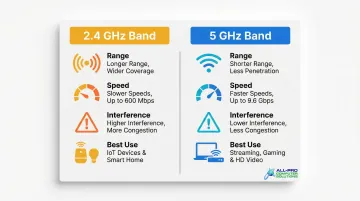
Strategy: Connect bandwidth-heavy devices (laptops, streaming TVs, gaming consoles) to 5 GHz and low-demand smart home devices to 2.4 GHz.
Tip 5: Change Your Wi-Fi Channel to Reduce Interference
Neighboring networks competing on the same Wi-Fi channel cause interference and slowdowns. The 2.4 GHz band has only three non-overlapping channels: 1, 6, and 11. Using any other channel (like 3 or 9) causes adjacent channel interference.
How to change channels:
- Log into your router's admin interface (typically 192.168.1.1 or 192.168.0.1)
- Navigate to Wireless Settings or Wi-Fi Configuration
- Switch to channels 1, 6, or 11 on 2.4 GHz
- Save settings and restart the router
Most modern routers offer an "auto" channel selection option that scans for the least congested channel automatically.
Tip 6: Manage Device Load and Use QoS Settings
The average US household now hosts 21 connected devices, and because Wi-Fi is half-duplex (only one device can transmit at a time), high device counts increase airtime contention (where devices compete for the same airtime).
Reduce congestion:
- Log into your router's admin panel and review connected devices
- Disconnect unused or guest devices
- Schedule large downloads for off-peak hours (late night or early morning)
Enable QoS (Quality of Service):
- QoS settings prioritize bandwidth for critical tasks like video calls or streaming over lower-priority background traffic
- Access QoS settings in your router's admin interface under "Traffic Management" or "QoS"
- Assign high priority to devices used for work or streaming
Tip 7: Update Router Firmware and Device Network Drivers
Outdated router firmware causes performance issues and security vulnerabilities. CISA strongly recommends regularly updating router firmware to enhance performance and address security flaws. Yet most home users never check for firmware updates — leaving both performance and security gaps unaddressed.
Update router firmware:
- Log into your router's admin interface
- Navigate to Administration or Firmware Update
- Check for available updates and install them
- Some routers have mobile apps that simplify this process
Update device network drivers:
- On Windows: Device Manager > Network Adapters > right-click your adapter > Update Driver
- On Mac: System Settings > Software Update
- Outdated drivers can mimic Wi-Fi slowdowns — the problem is the computer, not the network
Tip 8: Check for Unauthorized Users or Malware
Unknown devices on your network or malware on your devices silently drain bandwidth. In 2024, the FBI and CISA disrupted the "Flax Typhoon" botnet, which had compromised over 260,000 devices worldwide, including home routers.
Security audit steps:
- Log into your router's admin interface and check the connected device list
- Look for unrecognized devices or unusual device names
- If you find unknown devices, change your Wi-Fi password immediately
- Run a malware scan on computers showing persistent slowdowns
- Disable WPS (Wi-Fi Protected Setup) and UPnP (Universal Plug and Play), which are known security risks
If you're finding unfamiliar devices or suspect your network has been compromised, a professional audit can identify threats and lock things down — APCS provides this for both home and business clients across the North Bay.
Tip 9: Add a Wi-Fi Extender or Upgrade to a Mesh Network
Wi-Fi dead zones are areas where the router's signal doesn't reach adequately — common in larger homes, multi-story layouts, or properties with thick walls.
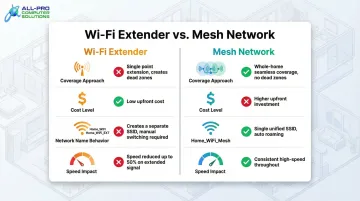
Wi-Fi Extenders:
- Rebroadcast the router's signal to cover a specific dead zone
- Budget-friendly solution for a single problem area
- Often create a separate network name (for example, "Network_EXT"), requiring manual switching between networks
- Can halve Wi-Fi speeds because they use the same radio to communicate with both the router and your devices
Mesh Network Systems:
- Use multiple nodes for seamless whole-home coverage
- Maintain a single network name; your device automatically connects to the strongest node
- Preserve speeds by using dedicated backhaul connections (a separate wireless link between nodes that doesn't compete with your devices)
- Recommended for larger homes, multi-story layouts, or properties requiring whole-home coverage
Tip 10: Use a Wired Ethernet Connection Where Possible
Hardwiring high-bandwidth devices directly to the router via Ethernet cable eliminates Wi-Fi interference entirely, reduces wireless network congestion, and delivers more consistent speeds.
Devices that benefit most from wired connections:
- Desktop computers and home office workstations
- Gaming consoles (PlayStation, Xbox)
- Smart TVs and streaming boxes
- NAS drives and backup devices
This is especially valuable for home offices and video conferencing, where connection stability is critical.
Should You Fix or Replace Your Router?
Signs It's Time to Replace Your Router
- The router is more than 5 years old
- It doesn't support dual-band or Wi-Fi 5/6
- It overheats regularly or requires frequent restarts
- You recently upgraded your ISP plan but aren't seeing speed improvements
- Firmware updates are no longer available for your model
Industry experts and manufacturers generally recommend replacing routers every 3-5 years. Past that mark, failure rates climb, security updates stop (End of Life), and the wireless protocols become outdated.
When to Troubleshoot Instead of Replace
If your router is relatively new, the issue is likely placement, firmware, congestion, or settings — all fixable without buying new hardware.
Not sure which category you're in? APCS offers professional network assessments for North Bay homes and businesses to pinpoint whether the problem is hardware or configuration — so you're not spending money on equipment you don't need.
Mistakes to Avoid When Troubleshooting Slow Wi-Fi
Even with the right approach, a few common missteps can derail your troubleshooting. Watch out for these:
- Skip hardware upgrades until you've diagnosed the root cause. Many users buy new routers when a channel change or firmware update would have fixed the problem. Work through the steps methodically before spending money.
- Don't overlook network security. Unauthorized devices or malware quietly consuming bandwidth is a common cause of persistent slowdowns. Change your Wi-Fi password periodically and audit connected devices regularly.
- Schedule large downloads for off-peak hours. System updates, game files, and large media transfers create bottlenecks during peak usage — run them late at night instead.
Conclusion
Most slow Wi-Fi issues trace back to a small set of fixable root causes—placement, congestion, outdated settings, or security gaps. Working through the 10 tips in order gives you a clear picture of where the problem actually lives—and that clarity is what leads to a real fix.
If you've gone through the steps and your connection is still sluggish, the problem likely runs deeper than a quick setting change can reach—and that's when a professional assessment makes sense. APCS has been helping North Bay homes and businesses maintain fast, secure, and reliable networks for over 25 years. Whether you need a network assessment, security audit, or expert troubleshooting, contact APCS directly: (707) 400-7100 for Sonoma County or (415) 900-8928 for Marin County.
Frequently Asked Questions
What are the signs that your Wi-Fi is hacked?
Look for unknown devices on the network, unexplained slowdowns, higher-than-normal data usage, or being locked out of your router's admin page. Change passwords immediately and audit connected devices through the router's admin interface.
How often should I restart my router?
Once a week or once a month is sufficient for most households. Setting your router on a smart plug timer can automate this process entirely.
Should I use 2.4 GHz or 5 GHz Wi-Fi?
Use 5 GHz for speed-sensitive devices close to the router (laptops, smart TVs, gaming consoles). Use 2.4 GHz for range and low-bandwidth devices like smart home gadgets, cameras, and sensors that are farther from the router.
Can too many devices slow down Wi-Fi?
Too many active devices causes network congestion — one of the most common culprits behind slow speeds. Use QoS settings to prioritize critical traffic, disconnect idle devices, and consider a Wi-Fi 6 router if you're running 15+ devices simultaneously.
When should I upgrade my router?
Routers older than 4-5 years, those lacking Wi-Fi 5 or 6 support, or those that overheat regularly are prime candidates for replacement. If a recent ISP plan upgrade hasn't improved speeds, your router is likely the bottleneck.
What is a good Wi-Fi speed for a home?
According to the FCC's 2022 Broadband Speed Guide, 25 Mbps is sufficient for 4K streaming, 6 Mbps for HD video calls, and 4 Mbps for online gaming. Households with multiple simultaneous users need more — add these minimums together for each active user.