
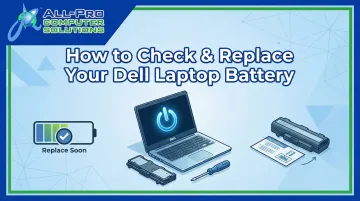
This guide walks you through how to spot warning signs, use Dell's built-in diagnostic tools to check battery health, interpret what the results mean, and decide whether repair or replacement is the right move—all in plain language, without the jargon.
TL;DR
- Dell laptops signal battery decline through rapid draining, unexpected shutdowns, or only working when plugged in
- Check battery health for free using Windows Command Prompt, BIOS diagnostics, or Dell Power Manager
- A Fair or Poor health rating means it's time to replace the battery
- Most Dell batteries last 18–36 months depending on usage patterns
- If the rest of the laptop runs well, a new battery is worth the investment
Warning Signs Your Dell Laptop Battery Is Failing
Behavioral Red Flags
The clearest indicators show up in everyday use:
- Rapid drain: Battery drops from 100% to critical within an hour of light browsing or document editing
- Unexpected shutdowns: Laptop powers off while the battery indicator still shows 30%, 50%, or higher
- Charger dependency: Device only functions when plugged in, even after a full charge cycle
Software Alerts You Shouldn't Ignore
Modern Windows and Dell systems provide clear warnings when battery health deteriorates:
- Windows notification: "Consider replacing your battery" message in the system tray (triggered when capacity falls below 40% of design capacity on older Windows versions)
- Dell app warnings: BIOS or Dell Power Manager displaying "Replace Battery" or "Poor" health status
- Diagnostic error codes: ePSA codes 2000-0132 (battery nearing end of life) or 2000-0133 (battery cannot supply sufficient power)
Any of these messages means your hardware is flagging a real problem. Get a battery health check done before the issue becomes a data loss or productivity risk.
The Urgent Physical Warning: Swollen Batteries
Software warnings are serious — but a physically swollen battery goes beyond a performance issue into genuine safety territory. Signs include:
- Laptop chassis no longer sits flat on a surface
- Trackpad or keyboard appears raised or uneven
- Visible bulge beneath the bottom panel
If you observe swelling:
- Immediately disconnect the charger
- Stop using the device
- Never puncture, compress, or attempt to remove the battery yourself
- Contact a technician to handle removal safely
Swollen lithium-ion batteries pose fire and explosion risks and must be handled by professionals.
How to Check Your Dell Laptop Battery Health
Dell includes several free, built-in diagnostic tools that require no third-party software. Which one you use depends on your comfort level and how much detail you're after.
Method 1: Windows Battery Report (powercfg)
This generates the most detailed battery history and health data.
Steps:
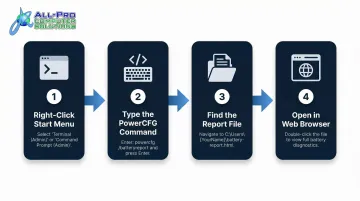
- Right-click Start and select Command Prompt (Admin) or Windows Terminal (Admin)
- Type
powercfg /batteryreportand press Enter - Navigate to
C:\\Users\\[your-account]\\battery-report.html - Open the file in your browser
What to look for:
- Design Capacity vs. Full Charge Capacity: The gap between these two numbers reveals degradation
- Example: Design Capacity of 56,000 mWh with Full Charge Capacity of 28,000 mWh means the battery operates at 50% of original capacity
This method works on all Windows-based Dell laptops and provides cycle count history, charge/discharge patterns, and usage estimates.
Method 2: BIOS/UEFI Check
Use this when Windows won't boot or when you need a quick hardware-level status.
Steps:
- Restart your laptop
- Repeatedly press F2 when the Dell logo appears
- Navigate to Overview or General
- Locate the Battery Health field
You'll see a status label (Excellent/Good/Fair/Poor) and confirmation that the AC adapter is recognized correctly. It's also a reliable way to diagnose charger recognition issues when software-based tools aren't accessible.
Method 3: Dell Power Manager or Dell Optimizer
The most user-friendly option for non-technical users.
Dell Power Manager (XPS, Inspiron, Vostro models):
- Open Start menu
- Search for Dell Power Manager
- Select Battery Information
- Review Battery Health status
Dell Optimizer (Latitude, Precision models):
- Open Start menu
- Search for Dell Optimizer
- Navigate to Power → About my battery
- Review health status
Not all Dell models ship with the same app, and Dell is consolidating Power Manager features into Dell Optimizer and MyDell — so use whichever is installed on your system.
Method 4: Dell On-Board Diagnostics
Run this before committing to a replacement — it's the most thorough hardware-level test Dell offers.
Steps:
- Restart your laptop
- Press F12 when the Dell logo appears
- Select Diagnostics from the One Time Boot menu
- Complete the quick test
- Click Advanced Test → System Info → Health tab
- Review battery status and any error codes
This diagnostic surfaces specific ePSA error codes that provide clear replacement guidance.
How to Interpret Your Battery Health Results
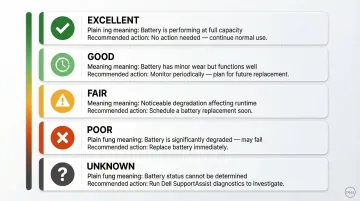
Misreading a "Good" result as problem-free is a common mistake. If runtime has already dropped 30%, a "Good" label won't warn you before the battery fails at a critical moment. Here's what each status actually means—and when to act.
Understanding Dell's Status Labels
| Health Label | What It Means | Action Required |
|---|---|---|
| Excellent | Operating at or near full design capacity | None—continue normal use |
| Good | Charges normally but long-term capacity declining | Monitor runtime; plan for eventual replacement |
| Fair | Nearing end of usable life | Schedule replacement soon |
| Poor | Can no longer provide sufficient power | Replace immediately |
| Unknown | Battery not operating or status cannot be determined | Replace immediately |
Design Capacity vs. Full Charge Capacity: What the Numbers Mean
The Windows Battery Report shows two critical metrics:
- Design Capacity: Maximum charge when brand new (measured in mWh)
- Full Charge Capacity: Current maximum charge after degradation
Example interpretation:
- Design Capacity: 56,000 mWh
- Full Charge Capacity: 28,000 mWh
- Result: Battery operates at 50% of original capacity
According to Battery University, lithium-ion batteries reach end-of-life at approximately 80% of design capacity. If your battery has dropped below that threshold, replacement should be scheduled—even if Dell's status still shows "Good."
A battery rated "Good" may have already lost 20–30% of its original capacity. If runtime has dropped from 8 hours to 5 hours, that's significant functional degradation, regardless of what the label says.
When and How to Replace Your Dell Laptop Battery
Check Your Warranty Status First
Dell laptop batteries come with a standard 1-year limited hardware warranty, with optional 3-year coverage (Long Cycle Life) available at purchase. Check your specific coverage at Dell's Support & Warranty portal using your Service Tag.
If under warranty: Initiate a claim through Dell Technical Support for free battery replacement.
If out of warranty: Purchase a genuine OEM replacement directly from Dell's support site using your Service Tag to ensure model compatibility.
Why You Should Avoid Third-Party Batteries
Non-Dell batteries carry significant risks:
- May increase fire or explosion risk — a documented safety concern Dell flags directly
- Dell laptops actively block unrecognized batteries, triggering rapidly flashing Amber/Green LED warnings
- Improper voltage or capacity can damage power management circuits
- Third-party batteries typically void Dell's warranty coverage
Stick to genuine Dell batteries purchased through official channels. Once you've confirmed the right battery, the next question is how straightforward the replacement will actually be.
Removable vs. Non-Removable Batteries
Models made before 2015 typically have user-accessible batteries that slide out after unlocking a panel — DIY replacement is straightforward.
Most modern Inspiron, XPS, and Latitude models use internal batteries that require base cover removal, cable disconnection, and careful reassembly. This carries real risks:
- Electrostatic discharge (ESD) damage
- Stripped screws or broken clips
- Incorrect cable reseating
If you're not comfortable with laptop disassembly — or if you're dealing with a swollen battery, non-removable design, or active warranty — take it to a professional instead.
Professional Replacement in the North Bay Area
For users in Marin and Sonoma counties who prefer professional service, APCS (All Pro Computer Solutions) offers laptop battery diagnostics and replacement at their San Rafael and Healdsburg locations. APCS sources replacement batteries from retired equipment and provides fast turnaround.
- Healdsburg (Sonoma County): 226 University Street, Unit D, Healdsburg, CA 95448 | (707) 400-7100
- San Rafael (Marin County, by appointment): 5800 Northgate Mall, Suite 250, San Rafael, CA 94903 | (415) 900-8928
Since APCS sources batteries from retired equipment rather than new stock, it's worth calling ahead to confirm availability for your specific Dell model.
Post-Replacement: Check BIOS Battery Settings
After installing a new battery:
- Restart and press F2 to enter BIOS
- Navigate to Power Management or Battery Settings
- Confirm Primary Battery Charge Configuration is set to Standard
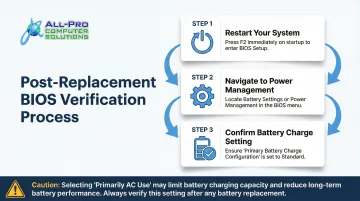
If set to "Primarily AC Use," the battery won't charge to full capacity, limiting your runtime. Standard is the correct default — if it's already set there, no further action is needed.
Common Mistakes to Avoid
Relying Only on the Windows Taskbar Percentage
The taskbar shows current charge level, not health. A battery displaying "85% charged" can still be in "Poor" health—that percentage reflects what's left of the remaining degraded capacity, not the original design capacity.
Ignoring Early Warning Signs
Occasional unexpected shutdowns or slight runtime decreases are often dismissed as normal. Catching "Fair" health early allows planned replacement instead of scrambling for an emergency repair when the battery dies during a critical task.
Buying Cheap Replacement Batteries Online
Counterfeit or uncertified batteries lacking proper Battery Management Systems (BMS) carry real fire and swelling risks. Before buying a replacement, verify:
- Compatibility with your specific Dell model number
- Safety certification (look for UL, CE, or equivalent markings)
- Seller authenticity — stick to the manufacturer, authorized resellers, or well-reviewed vendors
Mismatched voltage or capacity can damage charging circuits and isn't always a fixable problem.
Frequently Asked Questions
How do I know if my Dell laptop battery needs replacing?
Battery health status shows "Fair" or "Poor" in Dell diagnostics, the laptop shuts down unexpectedly while charge remains, runtime has dropped significantly compared to when new, or the device only functions when plugged in.
How much does it cost to replace a Dell laptop battery?
Dell OEM battery prices vary by model, typically ranging from $50 to $150. Batteries within the 1-year warranty period may be replaced at no cost. Out-of-warranty replacements add labor; contact your service provider for specific pricing.
Is it worth replacing a Dell laptop battery?
Replacement is almost always worth it if the laptop's processor, storage, and screen function well. A new battery costs far less than a new laptop and can restore 2-3 years of usable life.
What is the 80/20 rule for batteries?
The 80/20 rule means charging your battery only to 80% and not letting it drop below 20%. This practice reduces stress on lithium-ion cells and extends battery lifespan by minimizing deep discharge cycles.
Can I replace my Dell laptop battery myself?
It depends on your model. Older Dell laptops have user-accessible removable batteries that slide out easily. Most modern thin-and-light models have internal batteries requiring disassembly, which carries risk of damage and is better handled by a certified technician.
How long does a Dell laptop battery last?
Most Dell laptop batteries begin showing reduced runtime after 18 to 24 months for typical users, and sooner for power users. Lifespan is measured in charge cycles — typically 300 to 500 before capacity drops below 80%. Temperature, charge habits, and workload all affect how quickly degradation occurs.