
Despite these steep costs, most crashes stem from a predictable set of hardware, software, or environmental causes—and most can be diagnosed and fixed with the right approach. This guide walks you through identifying crash types, isolating root causes, applying step-by-step fixes, and deciding when to call in professional help.
TL;DR
- Overheating, failing storage drives, faulty RAM, outdated drivers, and malware cause the majority of computer crashes
- Crash type reveals the problem: BSODs point to drivers or hardware; hard shutdowns suggest power or overheating issues
- Software crashes often resolve with Event Viewer diagnostics, SFC scans, or driver updates
- Hardware failures require physical component replacement
- Frequent, unpredictable crashes or data loss are a sign it's time for professional repair
Common Types of Computer Crashes
Each crash type behaves differently and points to a distinct underlying cause — identifying which one you're dealing with shapes every diagnostic step that follows.
Hard Shutdown (Instant Power Loss)
The computer abruptly cuts all power with no warning—screen goes black, no restart prompt. This typically points to:
- Power supply failure
- Severe overheating triggering protective shutdown
- Hardware fault causing emergency power cutoff
Hard Restart (Auto-Reboot Without Warning)
The system suddenly shuts down, then automatically restarts without user input. Common causes include:
- Windows crash settings configured to auto-restart
- Overheating
- Power supply instability
- BIOS or firmware issues
Blue Screen of Death (BSOD)
Windows detects a fatal error it cannot recover from and displays a stop code. The stop code (e.g., KERNEL_SECURITY_CHECK_FAILURE, MEMORY_MANAGEMENT, PAGE_FAULT_IN_NONPAGED_AREA) is your most critical diagnostic clue.
Critical step: Photograph or write down the exact stop code before restarting. Microsoft telemetry shows 70% of Windows stop errors are caused by third-party driver code, making the stop code essential for pinpointing which driver is at fault.
System Freeze or Hang
The computer becomes completely unresponsive—cursor frozen, keyboard unresponsive—without shutting down. This commonly indicates:
- CPU or RAM overload
- Storage drive failure
- Software deadlocks
Application Crash (Software-Level)
A specific program closes unexpectedly, sometimes with an error message, sometimes silently. Unlike system-wide crashes, this is typically a software-level problem. Common causes:
- Software bugs
- Driver conflicts
- Insufficient system resources
- Corrupt application files
Why Computers Crash: Root Causes
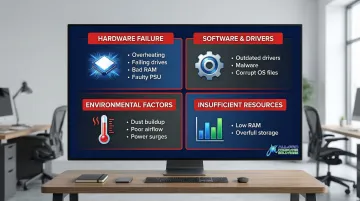
While crash symptoms vary, underlying causes fall into four predictable categories:
Hardware failure:
- Overheating from dust buildup or failing fans
- Failing storage drives
- Bad RAM modules
- Faulty power supply
Software and driver issues:
- Outdated or corrupt drivers (the leading cause of BSODs)
- Malware infections
- Corrupt operating system files
Environmental and operational factors:
- Dust buildup blocking ventilation
- Poor airflow around the machine
- Power surges and voltage fluctuations
Insufficient resources:
- Too little RAM for your workload
- Storage drives filled beyond 80-85% capacity, forcing OS instability
The Cost of Ignoring Crashes
When crashes go unaddressed, consequences compound quickly:
- Unsaved work disappears and drive corruption can make files unrecoverable
- Sustained overheating degrades multiple components — not just the one running hot
- Downtime hits home offices and small businesses harder than most people anticipate
The longer the root cause goes unaddressed, the more expensive the fix becomes. A failing hard drive, for example, typically signals trouble weeks in advance through slow load times and file errors — catching it then means a data backup and drive swap, not a full data recovery job.
How to Diagnose and Fix Computer Crashes (Step-by-Step)
Skipping diagnosis and jumping straight to fixes wastes time — and risks masking the real problem. Work through these steps in order.
Step 1: Document the Crash Symptoms
Record exactly what happens:
- Which crash type occurs (refer to types above)
- Any error codes or stop codes displayed
- When the crash happens (on startup, under load, after extended use, during specific applications)
- How frequently it recurs
This log is essential for both self-diagnosis and communicating with a technician.
Step 2: Check Windows Event Viewer and Reliability Monitor
Event Viewer:
Open Event Viewer by pressing Win + R, typing eventvwr, and pressing Enter. Navigate to Windows Logs > System and filter for Critical and Error events around the crash time.
Common event IDs to look for:
- Event ID 41 (Kernel-Power): Indicates unexpected shutdown from power loss or hard freeze
- Event ID 1001 (BugCheck): Records BSOD stop code parameters and memory dump file location
Reliability Monitor:
Press Win + R, type perfmon, press Enter, then navigate to Reliability Monitor to view a visual timeline of crashes, application failures, and Windows failures.
Step 3: Run Hardware Diagnostics
Test hardware before any software reinstalls:
Storage drive health:
- Use CrystalDiskInfo to check SMART status
- Watch for warnings about Reallocated Sector Count—any reallocations indicate the drive is failing
RAM testing:
- Run MemTest86 or MemTest86+ for at least two full passes (the recommended default is 4 passes)
- Memory errors during testing confirm faulty RAM modules
Temperature monitoring:
- Use HWMonitor or SpeedFan to check CPU and GPU temps under load
- Intel CPUs typically have maximum junction temperatures of 100-110°C
- AMD Ryzen processors have Tjmax ratings of 89-95°C
- Sustained high temperatures indicate cooling failure
Step 4: Fix Based on Confirmed Root Cause
Use what Steps 2 and 3 revealed to guide your fix — not guesswork.
If software or driver cause is confirmed:
- Run
sfc /scannowin an elevated Command Prompt to repair corrupt system files - Update or reinstall the problem driver via Device Manager — always pull from the manufacturer's site, not auto-update tools
- Run a trusted antivirus scan if malware is suspected
If hardware cause is confirmed:
- Clean internal components with compressed air to address dust-related overheating
- Reseat RAM sticks and check all internal cable connections
- Replace a failing storage drive and perform a clean Windows install on the new drive if SMART diagnostics confirm drive failure
If environmental/operational cause is confirmed:
- Improve ventilation around the machine
- Replace clogged or failing fans
- Use a UPS (uninterruptible power supply) to protect against power surges and unexpected outages
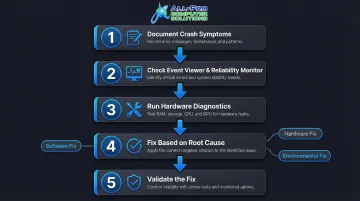
Step 5: Validate the Fix
After applying a fix, test the computer under conditions that previously triggered the crash:
- Run it under normal load, then peak load (multiple applications, resource-intensive tasks)
- Monitor temperatures and system stability for 24-48 hours of regular use
- Re-check Event Viewer to confirm no new critical errors are being logged
If crashes return during validation, the root cause likely wasn't fully addressed — revisit Step 3 before applying additional fixes.
When to Fix vs Replace Your Computer
The fix-vs-replace decision isn't always obvious. Repair cost, machine age, and the scope of what's failing all pull in different directions — and making the wrong call either way costs money.
When to Fix
Worth repairing in most cases:
- Software or driver problems (almost always fixable regardless of machine age)
- Single failing component (RAM stick, storage drive) in an otherwise healthy machine under five years old
- Overheating resolved by cleaning and fan replacement (low-cost fix)
When to Replace
Replacement often makes more sense when:
- Motherboard, CPU, or GPU has failed in an older machine (repair costs often approach or exceed replacement cost)
- Multiple hardware problems are failing at once — one component is a repair; three is a pattern
- Repeated crashes are costing a small business more in lost productivity than a replacement would
Industry guidelines recommend the 50% rule: if repair costs exceed 50% of replacement value, replacement usually makes more financial sense — particularly as machines approach the 3-5 year lifecycle.
APCS provides diagnostic assessments for North Bay Area home users and businesses to take the guesswork out of this decision. Reach the Sonoma County office at (707) 400-7100 or the Marin County location at (415) 900-8928.
How to Prevent Computer Crashes
Most crashes are preventable with low-effort maintenance habits — and prevention is far cheaper than repair.
Key preventive actions:
- Keep operating system and all drivers up to date (schedule monthly checks)
- Run periodic hardware diagnostics, especially checking storage drive SMART status every 3-6 months
- Clean internal dust buildup every 3-6 months with compressed air
- Use a surge protector or UPS to protect against power events
- Avoid filling storage drives above 80-85% capacity to prevent OS instability
These habits work well for hands-on users, but not everyone has time to stay on top of them. For North Bay small businesses and home offices, APCS's Remote Help Desk and Computer Maintenance service handles monitoring and updates automatically — catching problems before they cause a crash. With nearly 500 computers under remote management over more than 25 years, that track record speaks for itself.
Frequently Asked Questions
Why is my PC randomly crashing all of a sudden?
Sudden, new crashes often indicate a recent change—a Windows or driver update, new hardware, malware infection, or the onset of hardware failure (particularly a storage drive or power supply beginning to fail). Checking Event Viewer for errors around the crash time is the fastest first diagnostic step.
Can overheating cause a computer to crash?
Yes. Overheating is one of the most common causes of both hard shutdowns and hard restarts. CPUs and GPUs are designed to cut power when temperatures reach unsafe levels to prevent permanent damage. Dust-clogged fans, dried thermal paste, and poor ventilation are the usual culprits.
How do I know if my RAM is causing crashes?
Faulty RAM often causes BSODs with memory-related stop codes, random crashes under multitasking, or crashes that don't occur consistently. Run MemTest86 for two or more passes to confirm or rule out a RAM issue.
What does a Blue Screen of Death (BSOD) mean?
A BSOD means Windows encountered a fatal error it could not recover from. The stop code displayed on the screen identifies the specific failure—whether a driver conflict, hardware fault, or corrupt system file—making it the most useful piece of information to note before restarting.
How do I check Windows crash logs?
Windows stores crash records in Event Viewer. Press Win + R, type eventvwr, press Enter, then navigate to Windows Logs > System. Filter for Critical and Error events from around the time of the crash to identify the likely cause.
When should I take my computer to a professional for crash repairs?
Seek professional help when crashes are frequent and self-diagnosis hasn't identified a clear cause, when hardware like a motherboard or drive may need replacement, or when important data is at risk. Catching these issues early prevents more costly repairs. APCS has served the North Bay Area from Healdsburg and San Rafael for over 25 years—call (707) 400-7100 or (415) 900-8928 to get started.