
Introduction
Mac infections are more common than most people expect. In 2023, 11% of all malware detections on Mac computers were confirmed infections, and infostealer attacks surged 70% in late 2024. Apple's built-in protections are solid, but they aren't foolproof — adware, spyware, ransomware, and cryptominers all have Mac-specific variants, spread through malicious downloads, browser exploits, and social engineering.
This guide covers how to spot the warning signs of a Mac infection, remove it step-by-step using Safe Mode and built-in tools, and lock things down to prevent it from happening again. You'll also learn when a situation calls for professional IT support — like when malware keeps coming back, your files are locked, or sensitive data may be at risk.
TLDR
- Slow performance, unfamiliar apps, browser hijacks, and pop-ups are common infection signs
- Remove viruses by disconnecting Wi-Fi, booting into Safe Mode, removing suspicious apps, and resetting your browser
- Apple's XProtect and Gatekeeper help, but they can miss newer threats, so run a dedicated malware scan for active infections
- Change all passwords post-removal and enable two-factor authentication
- If malware persists or you suspect data theft, contact a professional
Warning Signs: How to Tell If Your Mac Has a Virus
Mac viruses often run silently before symptoms become obvious. If something feels off, these are the most common warning signs:
- Significant slowdown, freezing, or overheating — Malware like LoudMiner uses background virtual machines to mine cryptocurrency, consuming 100% CPU and causing excessive fan noise
- Browser homepage or search engine changed without permission — Adware like Search Baron or Genieo hijacks your searches and injects ads; unfamiliar extensions may appear without you installing them
- Unfamiliar apps in Applications folder — Files or programs you didn't install; contacts receiving spam from your email account
- Security alerts appearing unprompted — Scareware, inability to access files, or a ransom note demanding payment
- Persistent password prompts — Infostealers like AMOS (Atomic Stealer) loop password requests to access your macOS Keychain and steal saved credentials
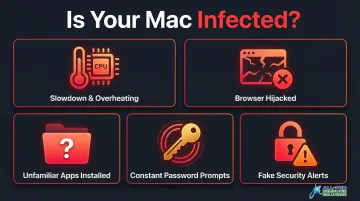
Many infections hide when Activity Monitor is open or only trigger under specific conditions. Spotting even two or three of these together is a strong signal something is actively running on your machine.
How to Remove a Virus from Your Mac: Step-by-Step
Follow these steps in order. Skipping ahead—especially scanning before disconnecting from the internet—can allow malware to transmit stolen data or receive new instructions before you stop it.
Step 1: Disconnect from the Internet
Turn off Wi-Fi immediately and unplug any ethernet cables. Many viruses require an active internet connection to send stolen passwords, banking credentials, or personal files back to attackers. Disconnecting cuts off this channel and prevents the malware from downloading additional payloads or communicating with command-and-control servers.
Step 2: Boot into Safe Mode
Safe Mode prevents most third-party software—including malware—from loading at startup. It also clears system caches and performs automatic startup disk checks.
For Apple Silicon Macs:
- Shut down your Mac completely
- Press and hold the power button until "Loading startup options" appears
- Select your startup volume
- Press and hold the Shift key, then click "Continue in Safe Mode"
For Intel Macs:
- Turn on or restart your Mac
- Immediately press and hold the Shift key until the login window appears
Safe Mode limits malware's ability to load persistent components and gives you a cleaner environment for removal.
Step 3: Check Activity Monitor for Suspicious Processes
Open Activity Monitor (Applications > Utilities > Activity Monitor) and sort by CPU and Memory usage (high to low) to spot unfamiliar processes consuming excessive resources.
Red flags include:
- Processes with random character strings or names like "miner," "adware," or "malware"
- Apps running under your user account that you don't recognize
- High CPU usage (above 50%) from unknown processes
When you identify a suspicious process, select it and click the "X" icon to quit it. Then search for the file name in Finder and delete it. Check both /Library/LaunchDaemons/ and ~/Library/Application Support/ for hidden components.
Step 4: Remove Suspicious Apps and Login Items
Navigate to Finder > Applications and look for anything you don't recognize or didn't intentionally install. Common culprits include names like "MacKeeper," "Advanced Mac Cleaner," or vague "utility" apps. Drag them to the Trash and empty it.
Next, go to Apple menu > System Settings > General > Login Items & Extensions. Remove any unknown auto-launch items — these allow malware to restart itself after reboot. Pay close attention to items with vague names or no publisher information.
Step 5: Run a Full Malware Scan
Reconnect to the internet briefly to download a reputable Mac-compatible malware scanner. Run a full system scan and follow the scanner's recommendations to quarantine or delete detected threats.
Important notes:
- If you already have antivirus software installed, consider running a different scanner as a second check—each tool may catch threats the other misses
- Do not run multiple real-time antivirus engines concurrently, as this causes severe system conflicts and performance issues
- Verify that XProtect is up to date: Apple menu > System Settings > General > Software Update > Automatic Updates (ensure "Install Security Responses and system files" is turned on)
For North Bay businesses and home users, APCS provides hands-on and remote virus removal support — using professional scanning tools and one-on-one guidance specific to your setup.
Step 6: Reset Your Browser and Clear Caches
Browsers are common targets — malware hides in cache files, extensions, and settings. Reset your browser to remove these remnants.
For Safari:
- Go to Safari > Settings > General > Homepage and verify it's correct
- Enable the Develop menu: Safari > Settings > Advanced > Show features for web developers
- Select Develop > Empty Caches
- Go to Safari > Settings > Extensions and remove any you don't recognize
- Clear history: History > Clear History
For Chrome:
- Go to Settings > Reset settings > Restore settings to their original defaults
- Remove unfamiliar extensions: Settings > Extensions
- Clear browsing data: Settings > Privacy and security > Clear browsing data
If a keylogger may have been active, take these steps before logging into any accounts:
- Change all saved passwords immediately
- Use strong, unique passwords for each account
- Enable two-factor authentication wherever possible
Mac's Built-In Protections: XProtect, Gatekeeper, and MRT
macOS includes three layers of security designed to prevent and remove malware:
- Gatekeeper checks that downloaded apps come from identified developers, carry Apple's notarization, and haven't been altered. It blocks unauthorized apps before they ever launch.
- XProtect is Apple's built-in antivirus, using YARA signatures to detect and block known malware when an app first runs, when it changes, or when signatures update. It runs silently and refreshes daily.
- MRT (Malware Removal Tool) automatically cleans up known malware after software updates, working in the background without any action needed from you.
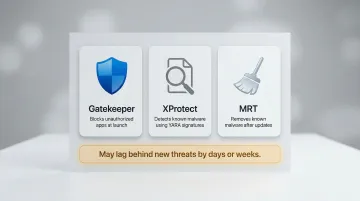
Critical limitation: These tools rely on Apple's database of known threats and can lag behind brand-new malware by days or weeks. Threat actors increasingly bypass Gatekeeper using social engineering techniques like "ClickFix," tricking users into pasting malicious AppleScript commands directly into Terminal. When an active infection is suspected, a dedicated third-party malware scan significantly improves your chances of catching newer or more sophisticated threats.
To verify XProtect is enabled and current, navigate to Apple menu > System Settings > General > Software Update and confirm that automatic security updates are turned on.
How to Protect Your Mac After Virus Removal
Change All Passwords Immediately
After cleaning the infection, change all passwords used on the infected Mac—especially email, banking, cloud storage, and social media accounts. Keyloggers may have captured every keystroke you typed before removal. Enable two-factor authentication on all accounts that support it to reduce risk even if a password leaks.
Establish a Backup Habit
Time Machine backups stored on an external drive let you roll back to a clean state before an infection took hold. One rule matters above all: any restore point must be from before the infection, not after.
APCS recommends backing up critical data to both an external USB drive and a reputable cloud provider — two copies mean one failure won't cost you everything.
Ongoing Prevention Habits
These habits prevent reinfection after you've done the hard work of cleaning your system:
- Keep macOS and all apps updated — enable automatic updates so patches apply the moment Apple releases them
- Download only from the Mac App Store or verified developers — skip software from unfamiliar sites, pop-up ads, or unsolicited emails
- Don't click links in unexpected emails or pop-ups — phishing attacks routinely spoof addresses from people you know
- Use strong, unique passwords across accounts and store them in a password manager
For businesses, email-level filtering adds another line of defense. APCS provides corporate security services for North Bay businesses, including enterprise email scanning that checks all inbound messages and attachments — for both company accounts and employee personal accounts.
When to Call a Professional Instead of Going It Alone
DIY removal works for most straightforward infections, but certain scenarios require professional IT support:
- Malware reinstalls after every reboot: Persistent root-level access or hidden components in system directories are beyond what standard removal steps can reach.
- Ransomware locking your files: A technician can assess decryption options, attempt data recovery from backups, and determine whether information was exfiltrated.
- Suspected keylogger or spyware: If banking credentials, passwords, or business data may be compromised, a security audit is the only safe next step.
- Mac becomes unresponsive after attempted removal: This typically signals system file corruption or malware embedded in critical OS components.
APCS (All Pro Computer Solutions) provides hands-on and remote virus removal for home users and businesses throughout the North Bay Area, including Marin County and Sonoma County. A family-owned IT firm operating since 1998, APCS is known for fast response times and straightforward, no-jargon support. Reach them at (707) 400-7100 (Sonoma County) or (415) 900-8928 (Marin County).
Frequently Asked Questions
How can I tell if my Mac is infected with a virus?
Common signs include unexpected slowdowns, unfamiliar apps or browser changes, frequent pop-ups, and contacts receiving spam from your accounts. Some infections run silently and are only caught by a full malware scan, so periodic scans are a good precaution even without obvious symptoms.
Is it possible for a Mac to get a virus — can Windows viruses affect Macs?
Yes, Macs can get viruses, though macOS-specific malware differs from Windows malware. Windows viruses generally cannot run natively on macOS without virtualization. However, Mac-specific adware, spyware, ransomware, and trojans are real and increasingly common: 11% of all macOS detections in 2023 were confirmed malware.
Can I tell if my Mac is being monitored?
Look for unexpected webcam or microphone activity (orange or green dots near Control Center), unexplained data usage, slow performance, and unfamiliar processes in Activity Monitor. Run a full malware scan to detect spyware, and audit app permissions in System Settings > Privacy & Security.
Does Apple offer free or paid virus removal for Macs?
Apple provides built-in tools (XProtect, Gatekeeper, MRT) that operate automatically at no cost. However, Apple does not offer a standalone virus removal service—internal AppleCare documentation explicitly directs support representatives not to remove malware. Users needing hands-on removal should contact Apple Support for diagnostics or a certified IT professional like APCS for complete remediation.
How much does it cost to have a virus removed from my Mac?
Costs vary by provider and severity. Best Buy Geek Squad charges around $150 for virus removal and OS repair; consumer antivirus subscriptions run $25–$90 per year. APCS in the North Bay offers personalized Mac service — call (707) 400-7100 or (415) 900-8928 for a quote.
What should I do immediately after removing a virus from my Mac?
Take these steps right away:
- Change all passwords used on the infected device
- Enable two-factor authentication on key accounts
- Verify backups predate the infection
- Run a second malware scan to confirm the system is clean
Then schedule regular scans and enable automatic security updates going forward.