
Introduction
You've just replaced your MacBook battery — carefully followed a guide, snapped the connectors into place, powered it on — and the charge indicator still shows "Not Charging." It's one of the most frustrating tech experiences: the problem was supposed to be solved, not recreated.
A post-replacement charging failure isn't the same as a standard charging problem. Beyond the usual suspects — a faulty adapter or port — you're now dealing with connector seating, SMC recognition, battery compatibility, and macOS power management features that can intentionally pause charging.
Most users assume the replacement battery is defective within the first hour. In reality, the MacBook's power management system often just hasn't recognized the new battery yet.
That distinction matters — because the fix depends entirely on the cause. This guide covers why a new battery may still refuse to charge, with fixes ordered from the simplest resets to more technical diagnostics, plus clear guidance on when a professional repair makes more sense than another DIY attempt.
TL;DR
- Charging failures after replacement usually trace to a loose connector, SMC not recognizing the new battery, or Optimized Battery Charging holding the charge
- Most issues resolve with connector reseating, an SMC reset, and a discharge-recharge calibration cycle
- Non-genuine batteries can trigger "Service Recommended" warnings or fail to charge entirely on Apple Silicon Macs
- If resets and physical checks fail, the issue likely requires professional diagnosis of the battery or logic board charging circuitry
Why Your New MacBook Battery Isn't Charging After Replacement
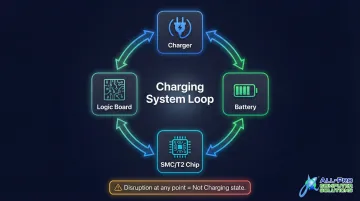
Replacing a battery doesn't guarantee immediate charging. The MacBook's charging system relies on a four-way communication loop between the charger, battery, SMC (or T2 chip on newer Intel models), and logic board. A disruption at any point triggers a "Not Charging" state. Several distinct issues can cause this — here are the most common ones.
Cause 1: Battery Connector Not Fully Seated
Symptoms:
- No charging indicator in the menu bar
- "No Battery Available" message
- MacBook runs only when plugged into AC power
On post-2013 MacBooks, there are often two connectors — a main power connector (secured with a T5 screw) and a separate data/communication flex cable. If either connector wasn't locked firmly during installation, even a marginally loose fit breaks the SMC communication signal. Both must be fully seated to restore normal charging.
Cause 2: SMC Has Not Recognized the New Battery
Symptoms:
- Battery shows 0% or a static percentage that doesn't change
- "Not Charging" or "Service Recommended" message appears despite the new battery
The SMC retains data from the old battery and may not have re-established communication with the replacement. According to Apple's support documentation, resetting the SMC resolves uncommon power-related issues, including charging failures after a battery swap. This applies to both genuine and third-party batteries.
Cause 3: Optimized Battery Charging Paused the Process
Symptoms:
- Battery is connected, charger works, but charging stops at 80% or doesn't start at all
- "Charging On Hold" appears in the battery status menu
macOS Big Sur and later intentionally hold charging below 80% or pause it at 93% to extend battery lifespan. Apple's battery health documentation confirms this is designed behavior driven by on-device machine learning. If you see "Charging On Hold," the system is working as intended — not malfunctioning after the replacement.
Cause 4: Non-Genuine or Incompatible Third-Party Battery
Symptoms:
- macOS displays "Service Recommended," "Replace Now," or battery health warnings immediately after installation
- Apple Silicon Macs may show stricter warnings or refuse to charge altogether
Apple's SMC validates battery authenticity through internal chip identification. Non-genuine batteries may pass partial verification but still fail to trigger normal charging. This is more common on M-series MacBooks than Intel models, where Apple's component authentication — which links parts to a specific device — is enforced more strictly.
How to Fix a MacBook Battery That Won't Charge After Replacement
Try these fixes in order from least invasive to most technical. Jumping to hardware fixes without ruling out software-related causes wastes time and risks further damage.
Step 1: Check and Dismiss Optimized Battery Charging
Open System Settings (or System Preferences on older macOS versions) > Battery > Battery Health. Confirm whether "Optimized Battery Charging" is active. If so, click "Charge to Full Now" to override the hold.
According to Apple's guidance, your Mac can show "Not Charging" even when plugged in — battery health features may temporarily pause charging to extend lifespan. This is normal macOS behavior, not a defective battery.
Step 2: Reset the SMC (Intel Macs) or Restart (Apple Silicon Macs)
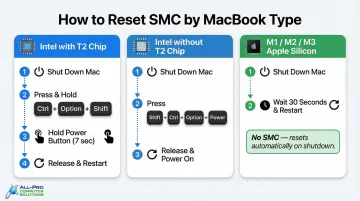
The SMC reset process differs by architecture — steps vary depending on your chip:
For Intel MacBooks with T2 chip:
- Shut down your Mac
- Hold Control + Option + Shift for 7 seconds
- Add the Power button and hold all four keys for another 7 seconds
- Release all keys, wait a few seconds, then power on
For Intel MacBooks without T2 chip:
- Shut down your Mac
- Hold Control + Shift + Option + Power for 10 seconds
- Release all keys, then turn on your Mac
For M1/M2/M3 Macs:There is no SMC. Simply shut down completely, wait 30 seconds, and restart. Apple confirms that SMC resets automatically on Mac with Apple silicon.
Resetting the SMC forces it to re-handshake with the new battery's internal chip, clearing any outdated power management data that may be blocking charging.
Step 3: Inspect and Reseat the Battery Connector
If you're comfortable opening the MacBook:
- Power off completely and disconnect the charger
- Remove the bottom case using the appropriate screwdriver
- Disconnect the battery flex cable from the logic board
- Inspect both the connector and logic board socket for debris or bent pins
- Clean connector pins with 90%+ isopropyl alcohol on a non-metallic swab
- Firmly re-lock the connector (use a plastic pry tool only, never metal)
- On post-2013 models, verify the power connector (T5 screw-secured) is fully seated
- Confirm the data/communication flex cable is also fully connected
Even a partially seated connector can cause a "Not Charging" state by breaking the SMC communication signal.
Step 4: Recalibrate the Battery
After resetting the SMC, perform a full discharge and recharge cycle:
- Let the MacBook run on battery until it shuts off automatically
- Charge uninterrupted to 100% while the MacBook is off or in sleep mode
A full cycle gives macOS a reference point to re-establish accurate charge percentage readings.
Step 5: Check Battery Health Status in macOS
Navigate to Battery > Battery Health and note the status message:
- "Normal" means charging should work
- "Service Recommended" or "Replace Now" immediately after a new install may indicate a non-genuine battery, an incompatible replacement, or a defective unit
Verify the battery model number matches your MacBook model. For example:
| MacBook Pro 15" Retina (A1398) | Correct Battery Model | Specifications |
|---|---|---|
| Mid-2012 / Early-2013 | A1417 | 11.26 V, 8800 mAh, 99 Wh |
| Late-2013 / Mid-2014 | A1494 | 11.26 V, 8700 mAh, 98 Wh |
Installing the wrong model will prevent the SMC from recognizing it correctly.
Step 6: Test With a Known-Good Charger and Port
Rule out charger issues by testing with the correct wattage Apple charger for your specific MacBook model. According to Apple's power adapter guidance, using a low-wattage adapter (such as a 30W MacBook Air charger on a 15" MacBook Pro requiring 87W) will not trigger charging even with a new battery.
Also inspect the charging port for debris or burn marks and clean with compressed air.
What to Do Immediately After Installing a New MacBook Battery
Follow this post-installation sequence to avoid common pitfalls:
- Check connections before powering on. Verify both the power connector and the data/communication flex cable are fully seated. Reconnect the charger first, so the SMC detects both the charger and new battery simultaneously on first boot.
- Reset the SMC after any battery replacement — even if it appears to charge fine. This clears old battery data and lets the SMC build a clean profile for the new battery.
- Run one full calibration cycle before judging the result: fully discharge to shutdown, then charge to 100%. Initial readings on a new battery often look inaccurate until calibration is complete.
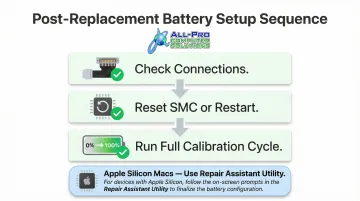
Apple Silicon Macs (macOS Tahoe 26 or later): Battery replacement requires an additional step. Open the Repair Assistant utility via Apple menu > System Settings > General > About > Parts & Service, then click "Restart & Finish Repair" to complete part calibration.
When to Try Again vs. When to Call a Professional
Try again (DIY is still viable) if:
- The battery connector was confirmed loose and reseating hasn't been attempted yet
- The SMC hasn't been reset since the replacement
- The issue is clearly tied to Optimized Battery Charging holding the charge
These are zero-cost fixes with high success rates.
Call a professional if:
- The battery shows "No Battery Available" after reseating and SMC reset
- macOS consistently reports "Service Recommended" on a genuine Apple battery
- The MacBook charges only with a third-party charger but not an Apple original (indicates a faulty reverse-current protection transistor on the logic board)
- A swollen replacement battery is observed — Apple warns that swollen batteries can damage the device and pose fire safety risks
These scenarios require component-level diagnosis and repair beyond DIY capability.
APCS serves MacBook owners across the North Bay Area with locations in Healdsburg and San Rafael. Their technicians can diagnose post-replacement charging failures, pinpoint whether the issue lies with the battery itself or the logic board, and perform logic board-level repairs when DIY fixes are exhausted. Call (707) 400-7100 (Sonoma County) or (415) 900-8928 (Marin County) to schedule a diagnostic appointment.
Common Mistakes to Avoid After MacBook Battery Replacement
A few avoidable errors account for most post-replacement charging failures. Watch out for these:
- Wrong part number: Non-genuine or third-party batteries must match your exact sub-model, not just the MacBook generation. Even a one-digit part number difference can prevent the SMC from recognizing the battery.
- Skipping the SMC reset: Many users return a battery within hours of installation without ever running an SMC reset — the single most common cause of a "Not Charging" reading on a new battery.
- Metal tools near the connector: Metal pry tools can short the logic board or damage the low-voltage communication pins. Use a plastic spudger or non-conductive tool whenever you're handling the battery connector.
Frequently Asked Questions
Why is my MacBook battery not charging after replacing the battery?
The most common reasons are an unseated battery connector, the SMC not recognizing the new battery, or Optimized Battery Charging holding the charge. Reset the SMC and check the connector first before assuming the battery is defective.
What to do after installing a new battery in a MacBook?
Verify both the power connector and flex cable are fully seated, reset the SMC (or restart on Apple Silicon), then perform a full discharge-recharge calibration cycle before evaluating battery health.
Why does my MacBook say it's charging when it's not?
macOS can show a charging indicator while the battery percentage stays flat for a few reasons:
- Optimized Battery Charging is intentionally pausing the charge
- The charger lacks sufficient wattage to charge under load
- The SMC has stale data from the battery swap
How much does it cost to fix a MacBook that won't charge?
Software fixes (SMC reset, calibration) are free. Battery replacement costs vary by model and whether Apple or a third-party shop performs the repair. Logic board charging circuit repairs require professional assessment and are more expensive.
Can a MacBook Pro 2011 work without a battery?
Older Intel MacBook Pros can run on AC power alone, but performance is often throttled because the system draws on battery power to supplement the CPU during demanding tasks. Replacing the battery is the better long-term fix.